Frida Server
What is Frida?
Frida is a toolkit for dynamic code instrumentation. It lets you easily inject your own code into other apps.
Frida works with apps made for all popular OS’s, including Windows, Linux, macOS, iOS, and even QNX.
Here, we’ll be using it to modify Android apps.
How do you open the Frida Toolkit?

In the app’s top left panel, find Tools → Frida toolkit at the very bottom.

Description of Available Windows
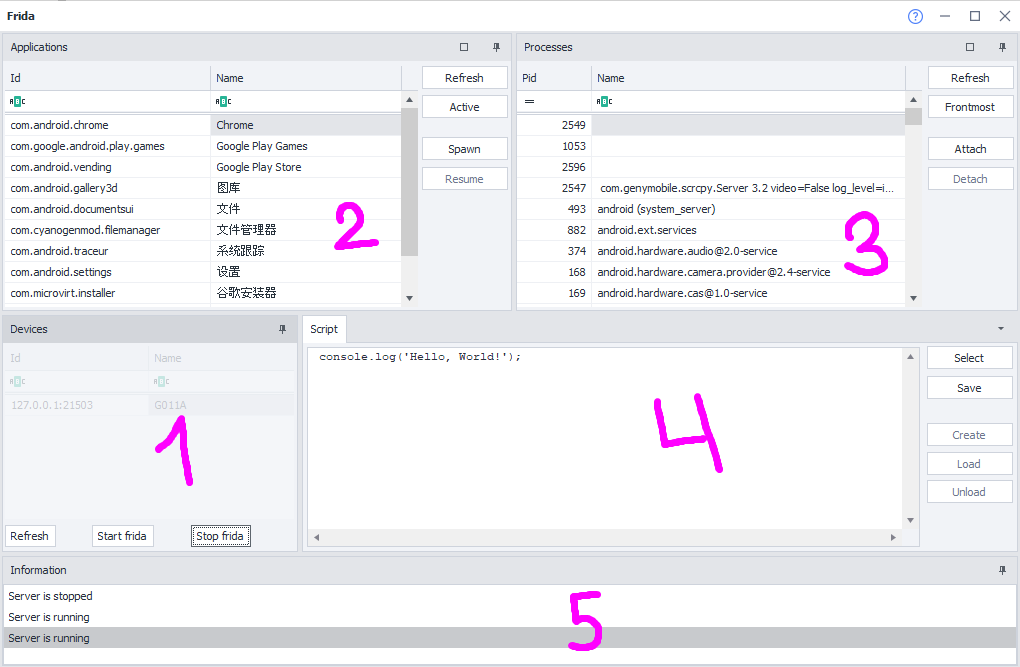
Devices (1):
A list of all devices connected via ADB. It automatically updates when you connect or disconnect devices or emulators.
In ZennoDroid Enterprise, you can switch between different devices. In other versions, you can only work with the emulator running in the main window.
Available buttons:
- Refresh: Force updates the list of devices.
- Start frida: Launches the Frida server on the device. After pressing it, wait for the info window to say “Server started”. The first time you run it, the server will install to the device, which takes a few seconds (about 5-10 sec).
- Stop frida: Stops the server but doesn’t uninstall it, so starting it again after will be much faster than the first run.
Apps (2):
Shows a list of all installed apps you can launch. Apps that can’t be launched (no launcher activity) aren’t shown.
Columns:
- Id: You can see the app’s unique identifier (package name).
- Name: The app’s display name, usually shown on its icon.
Available buttons:
- Refresh: Updates the app list. Use this after installing or uninstalling apps.
- Active: After clicking, selects the app currently showing on your device’s screen.
- Start: Launches the selected app and automatically connects to its process. If the app was already running, it’s killed and relaunched.
- Resume: Unpauses an app you previously paused.
Processes (3):
Here you’ll see all running processes on the device.
Columns:
- Pid: The process ID.
- Name: The process name. Since one app can have several processes, the name usually gives you more details. For example, com.android.settings tells you it’s the Settings app.
Available buttons:
- Refresh: Updates the list of running processes. Use this after launching or stopping apps.
- Topmost: Selects the main process of the app currently visible on your device.
- Connect: Connects to the selected process. Once you connect, you can load or create scripts.
- Disconnect: Disconnects from the process. If the app has closed, you’ll be automatically disconnected.
Enumerate Processes failed: Cannot read properties of undefined (reading ‘getRunningAppProcesses’)
In this case, run the Adb Shell action: pm uninstall com.google.android.art and reboot the device.
Script (4):
The script management window. Supports macros.
Available buttons:
- Select: Opens a file selection dialog. The script file should have a .js extension
- Save: Saves the window content to a .js file
- Create: Compiles the script. If there are errors (usually syntax-related), you’ll get a message in the info window.
(This action becomes available after you’ve connected to an app process.) - Load: Loads the script. If there are errors (often due to missing classes in the app code), you’ll get a message in the info window.
(You can only load after a successful Create press.) - Unload: Unloads the script. Scripts are also unloaded automatically when the app process closes.
Info (5):
This window shows service info, messages during scripts, errors, etc.
Hotkeys:
- (Ctrl + C): Copy highlighted messages.
- (Del): Delete highlighted messages.
- (Ctrl + Del): Delete all messages.
How to check if the Frida server is up and running
- Hit “Start frida” and wait for a “Server started” notification in the info window.
- On the Processes panel, press “Topmost”. This will select the active process.
- Click “Connect”.
- On the Script panel, enter this code:
console.log('Hello, World!'); - Hit “Create”, then “Load”.
- If everything worked, you’ll see the message:
["type":"log","level":"info","payload":"Hello, World!"]in the info window. - You can then click “Unload”. Frida server is working!
Typical scenarios
The app will be restarted even if it’s already running
- On the Apps panel, select the one you need (by name or using the “Active” button).
- Press “Start”. The app will start (or restart if it was open), then pause. It’ll auto-connect to its process.
- On the Script panel, click “Select” and open your desired script (.js file) in the dialog.
- Press “Resume”. The app will keep running.
Connect to a running app process
- On the Processes panel, hit “Topmost” to select the active process.
- Click “Connect”.
- On the Script panel, press “Select” and open your script (.js file).
- Press “Create”, then “Load”.
Useful links
- Official Frida scripts source
- Template and all required files (zenno.pfx password is 123)
- Connecting a real device to ZennoDroid
- Intercepting traffic with Frida and Burp Suite.