Intercepting traffic with Burp Suite
Please read the Material Usage Rules on this site.
For traffic analysis, you can use Burp Suite Community Edition from PortSwigger.
Setting up Burp Suite
You can download all the required files here:
Frida_Burp_HttpToolkit.zip (password for zenno.pfx: 123)
1. Download and install
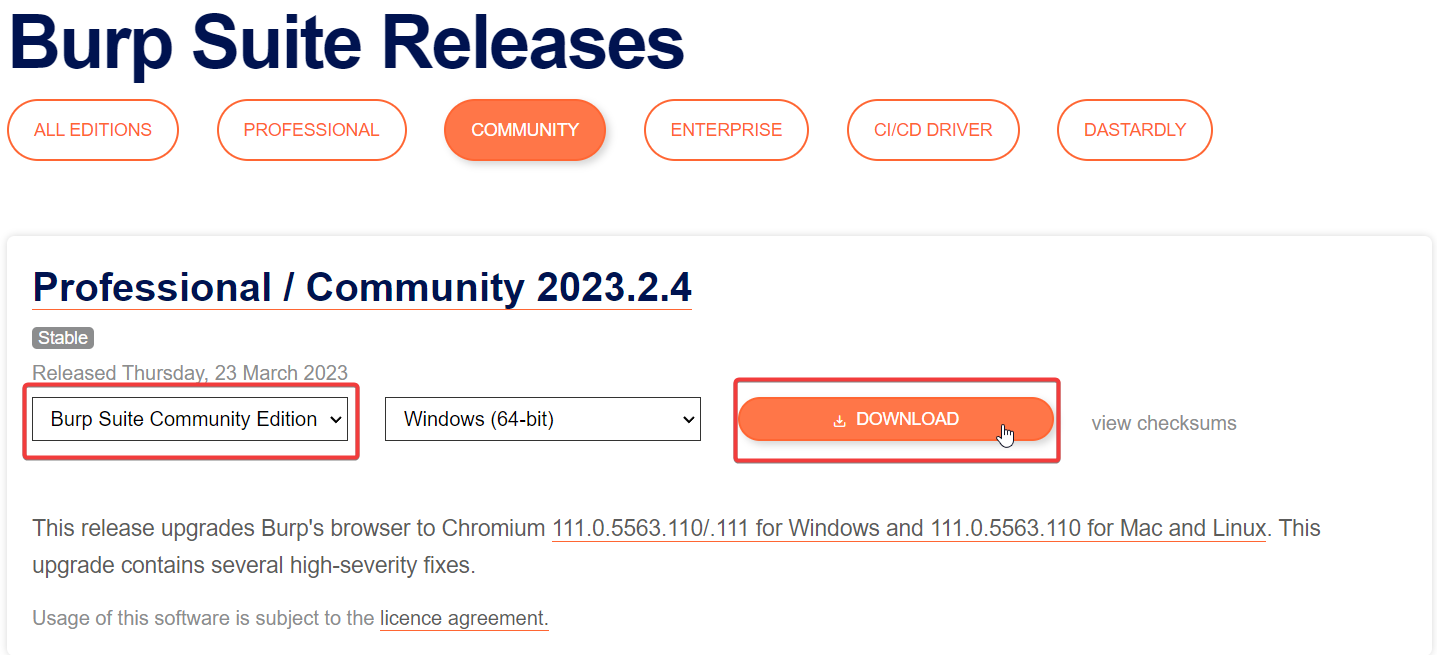
1. Select Burp Suite Community Edition and click Download.
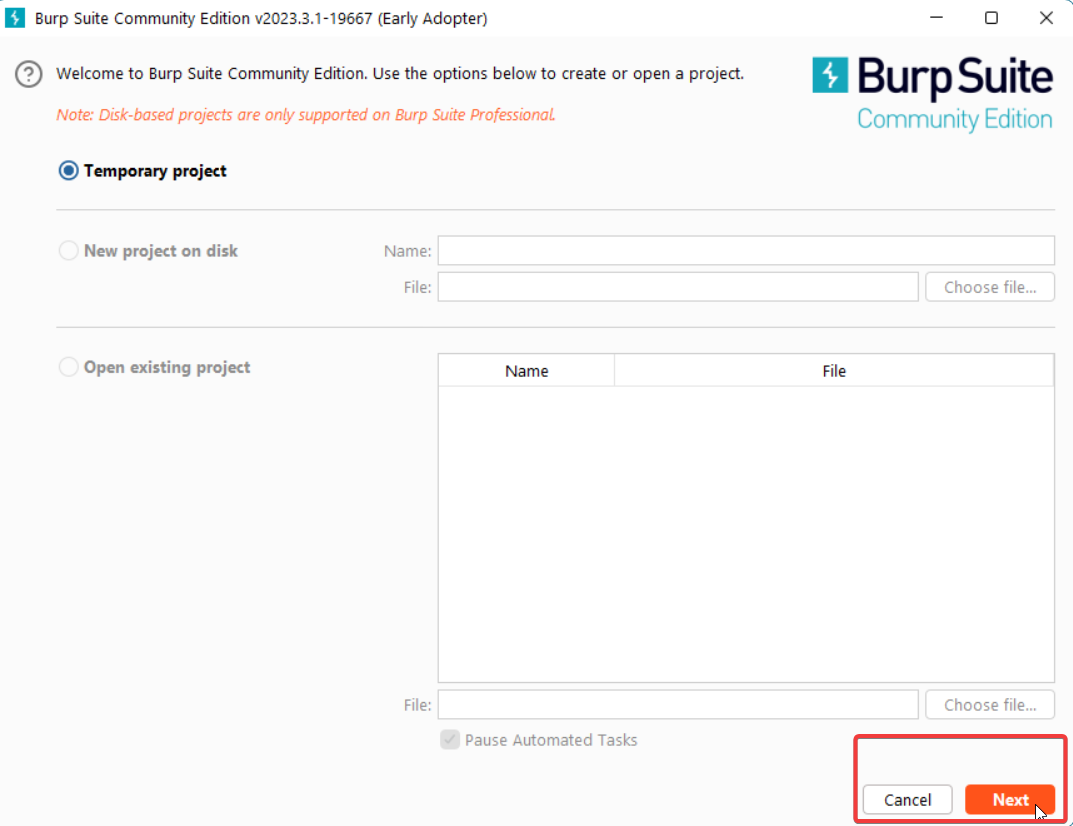
2. Create a Temporary project.
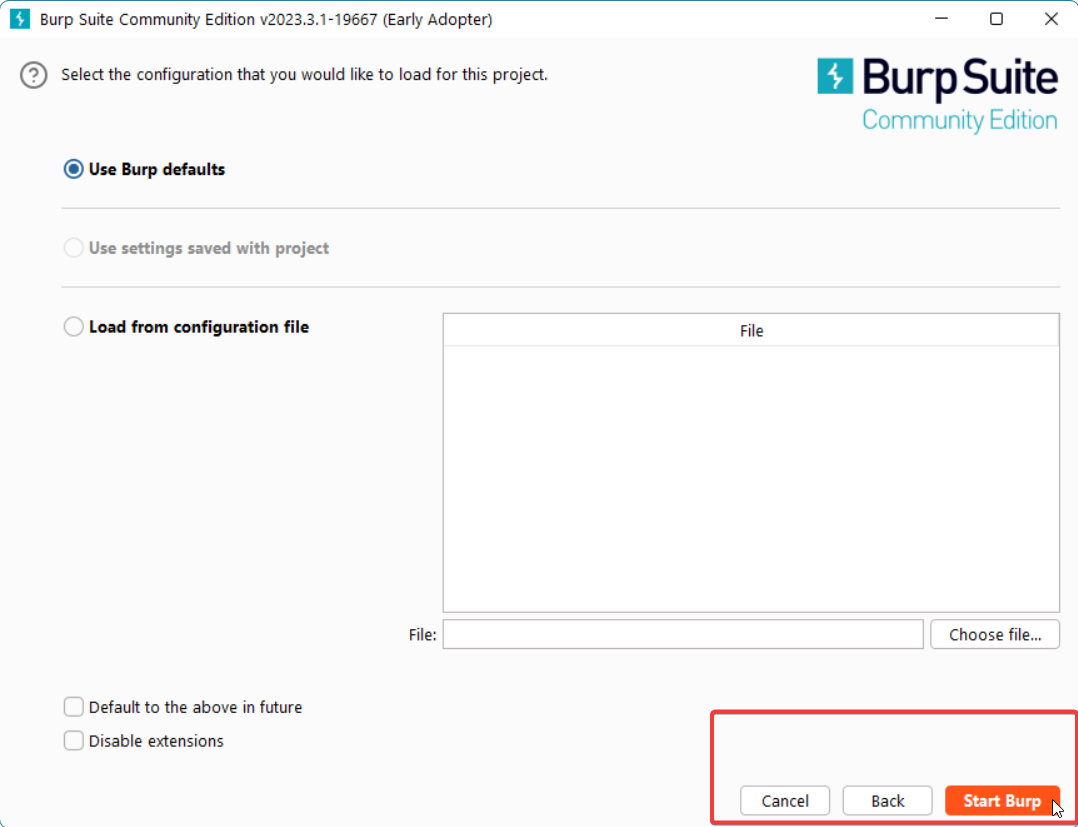
3. Use Burp defaults for the project.
2. Configure Burp Suite to process traffic from your computer's local network
1. Open Settings.
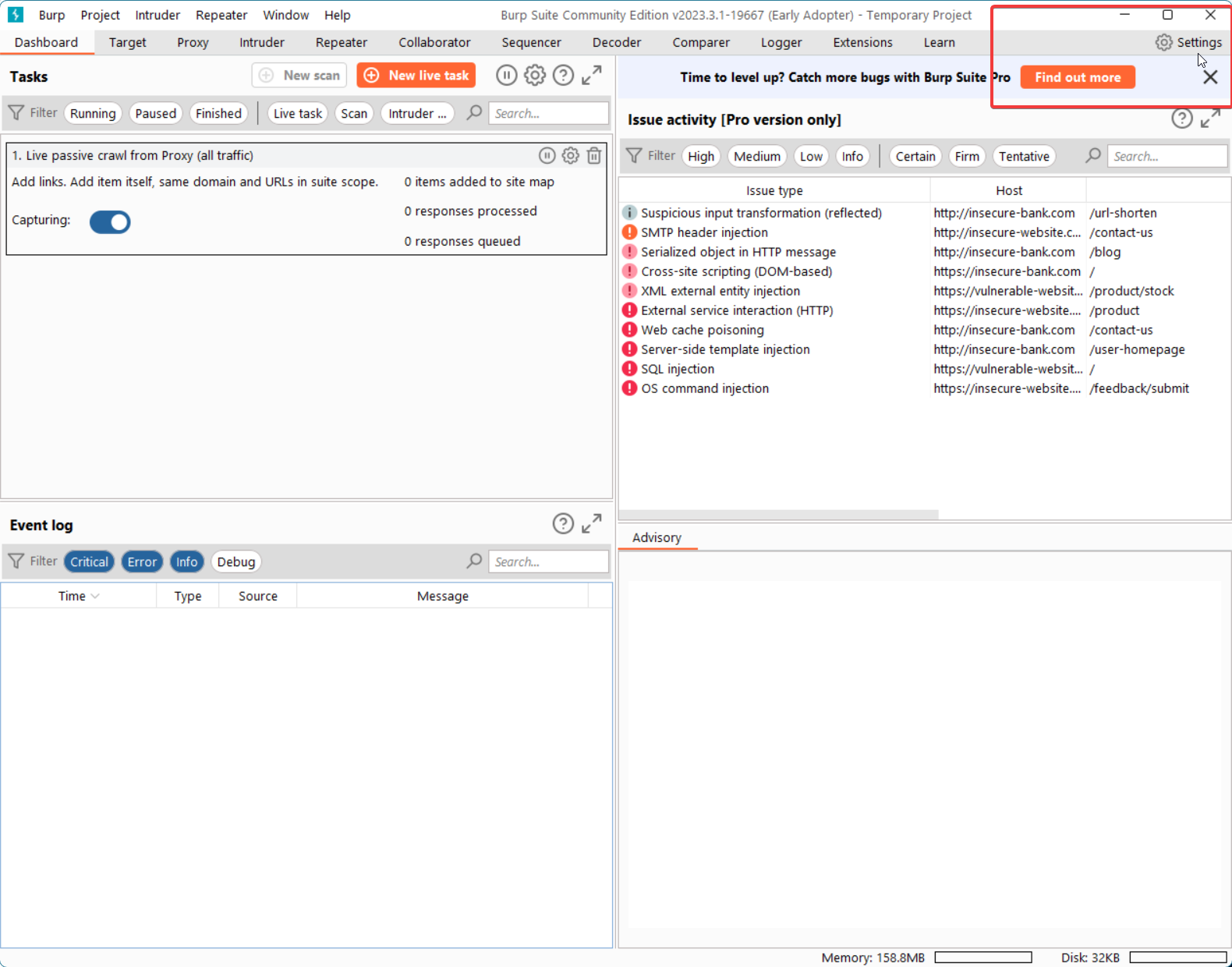
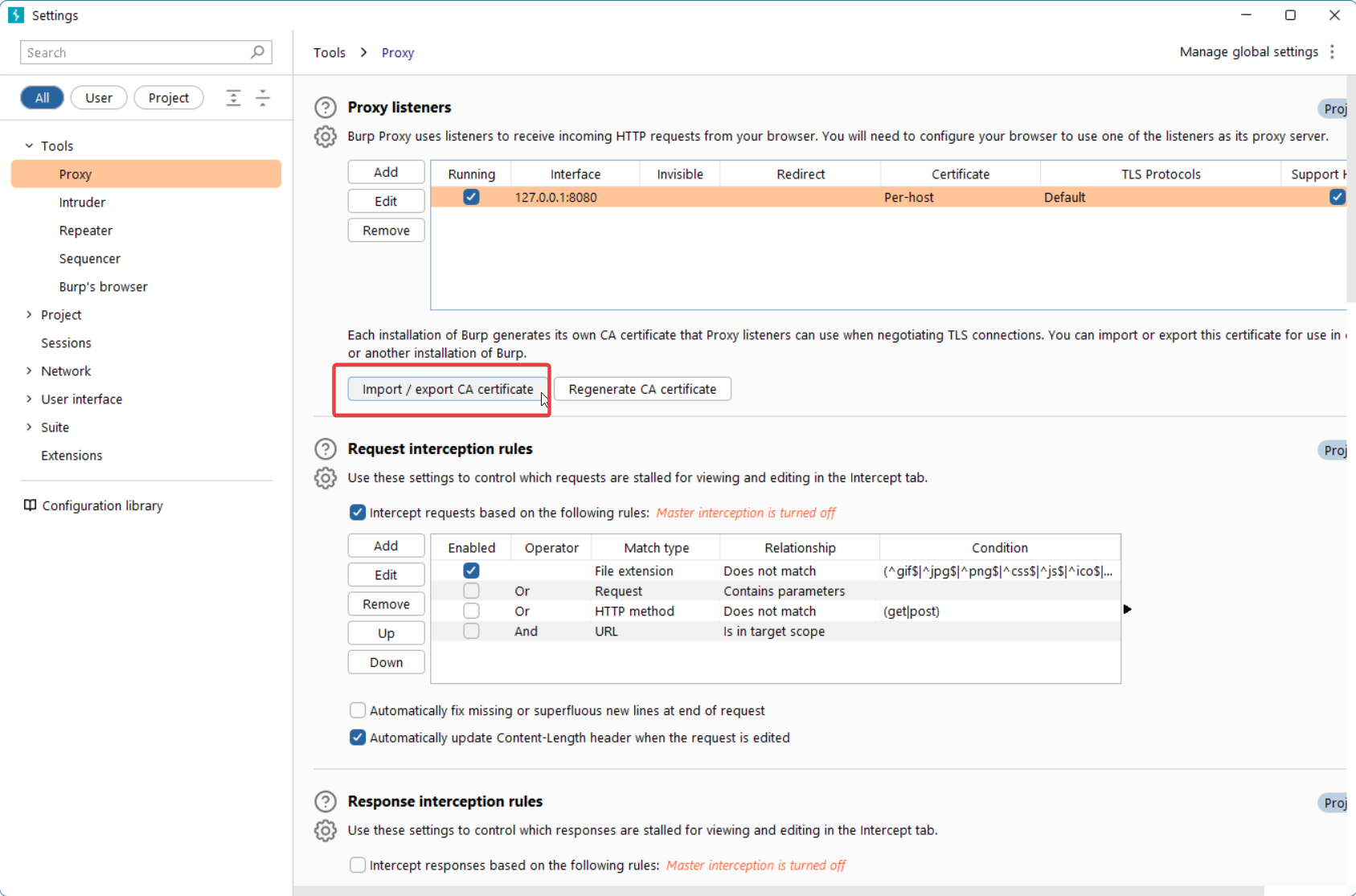
2. Go to Tools → Proxy and click Import / Export CA certificate.
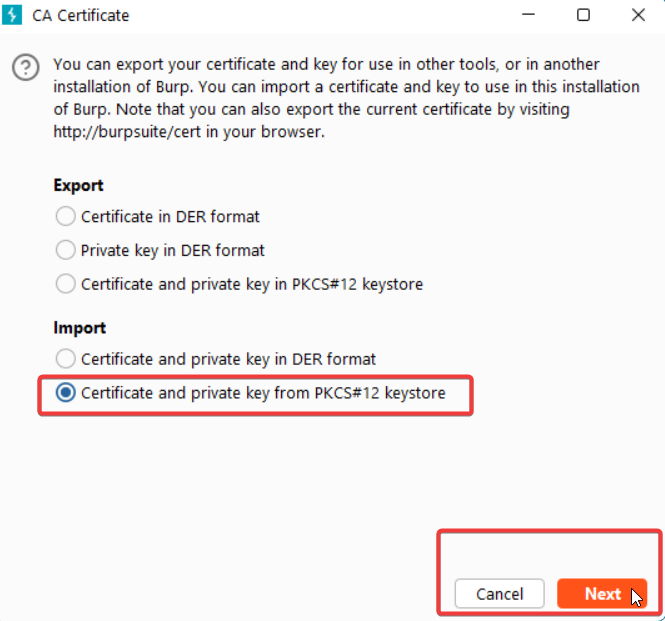
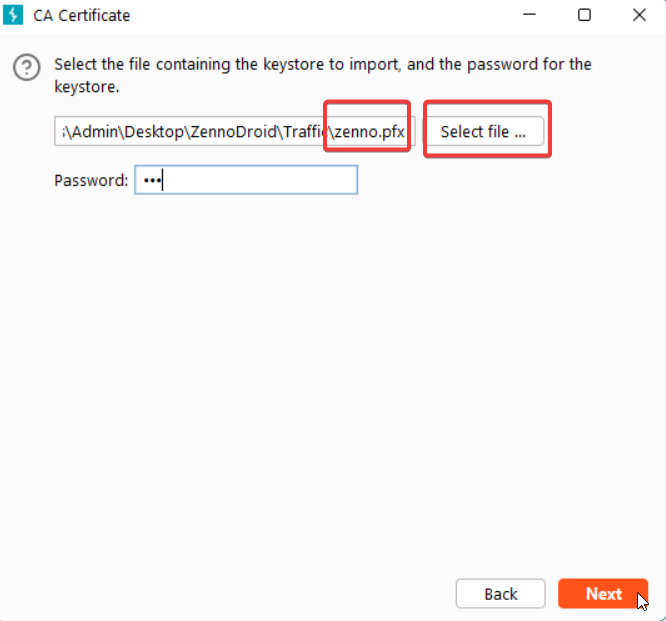
3. Select Certificate and private key from PKCS#12 keystore, then choose the zenno.pfx file (password: 123).
Intercepting traffic using Frida
Setting up Burp Suite and disabling certificate checks with Frida scripts
You can download all the required files here:
Frida_Burp_HttpToolkit.zip (password for zenno.pfx: 123)
Installing a custom certificate for traffic interception in Chrome
You can download all the required files here:
Frida_Burp_HttpToolkit.zip (password for zenno.pfx: 123)
The initial Burp Suite setup is shown in the previous video.
Intercepting traffic without using Frida
Setting up Burp Suite and disabling certificate checks with the ZennoDroid module
This method is only supported in ZennoDroid Enterprise
You can download all the required files here:
TrafficCapture.zip (password for zenno.pfx: 123)
Setting up Burp Suite and patching an app to intercept Flutter requests
You can download all the required files here:
Useful links
- Installing and setting up Frida.
- Frida_Burp_HttpToolkit.zip (password for
zenno.pfx:123). - TrafficCapture.zip (password for
zenno.pfx:123). - Flutter_Patch_Restore.zip
- android-ssl-pinning-demo.apk
- Connecting a real device to ZennoDroid.
- Managing LSPosed.