Turning off Hyper-V
Hyper-V lets you run multiple operating systems as virtual machines in Windows. It also allows you to virtualize hardware. But if you’re using ZennoDroid or emulators, Hyper-V might get in the way, so in this article, let’s go over how to turn it off.
Is Hyper-V enabled?
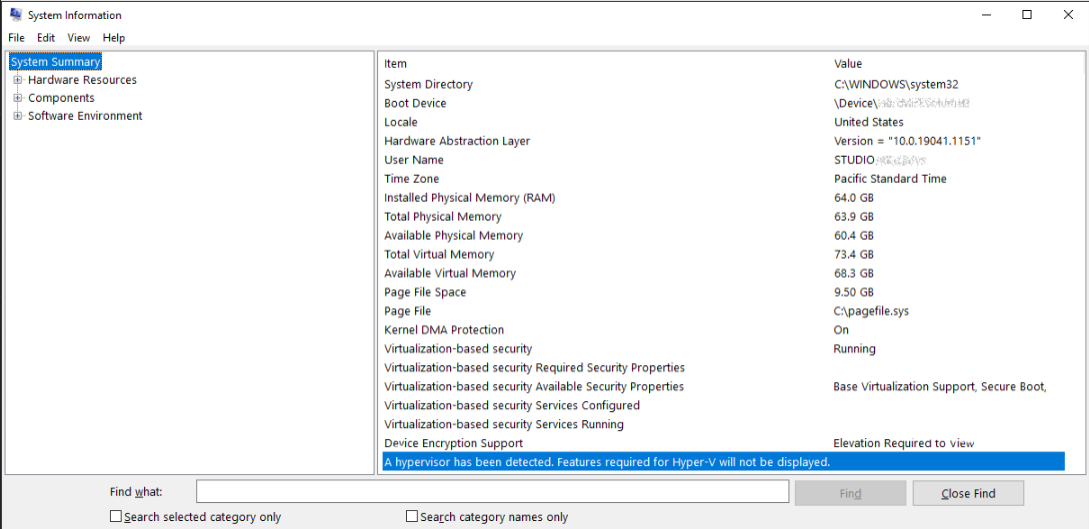
First, let’s check if the low-level shell is running:
1. In the app search, type msinfo32.exe
2. Select System Information.
3. In the information window, look for this entry:
“A low-level shell has been detected. Features required for Hyper-V will not be displayed.”
Disabling it via Command Prompt
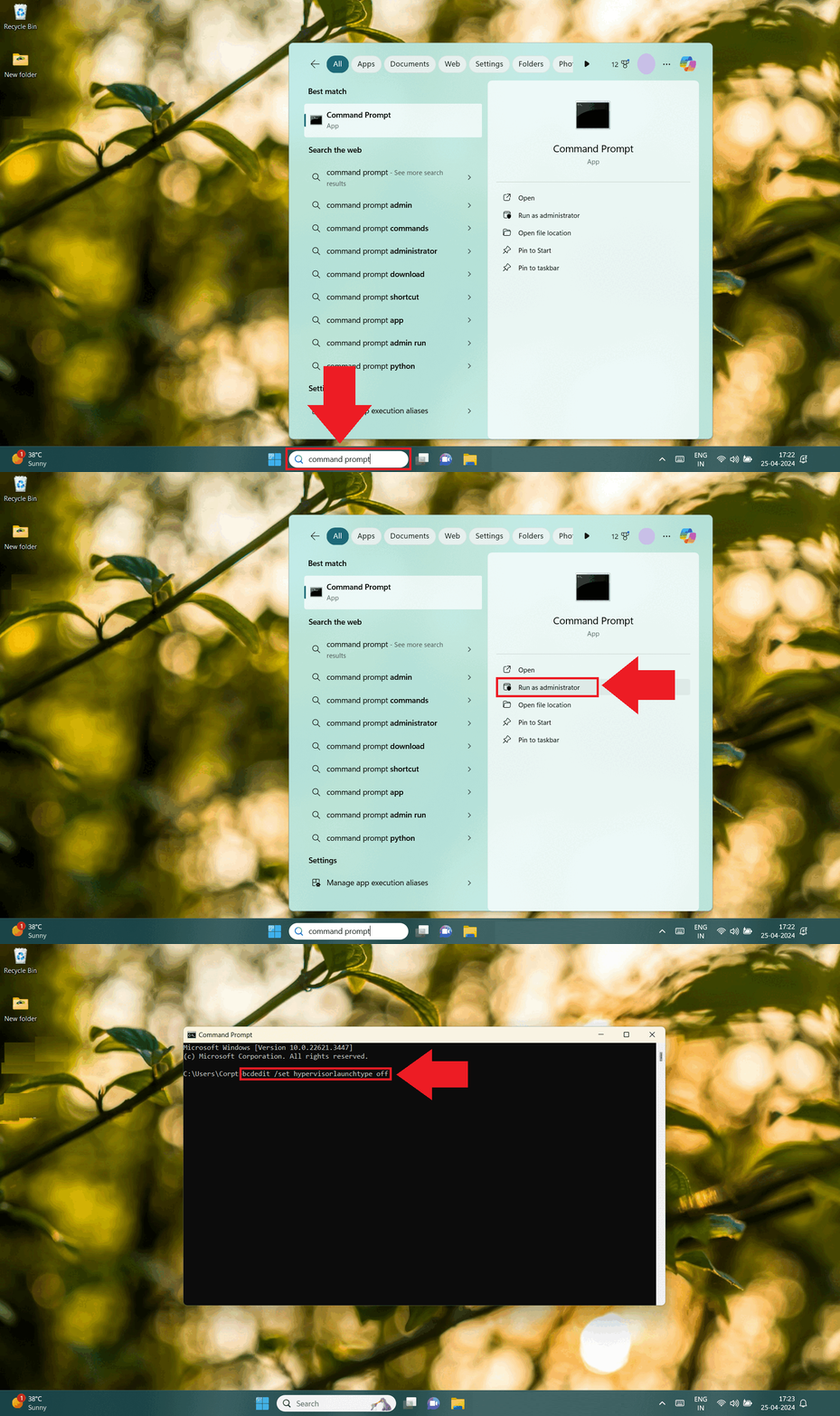
1. Click the search bar and type Command Prompt.
Or press Win+R, type cmd and hit Ok or Enter.
2. In the command window, type this command and press Enter:
bcdedit /set hypervisorlaunchtype off
3. Done, Hyper-V is off 😎
Disabling it through Control Panel
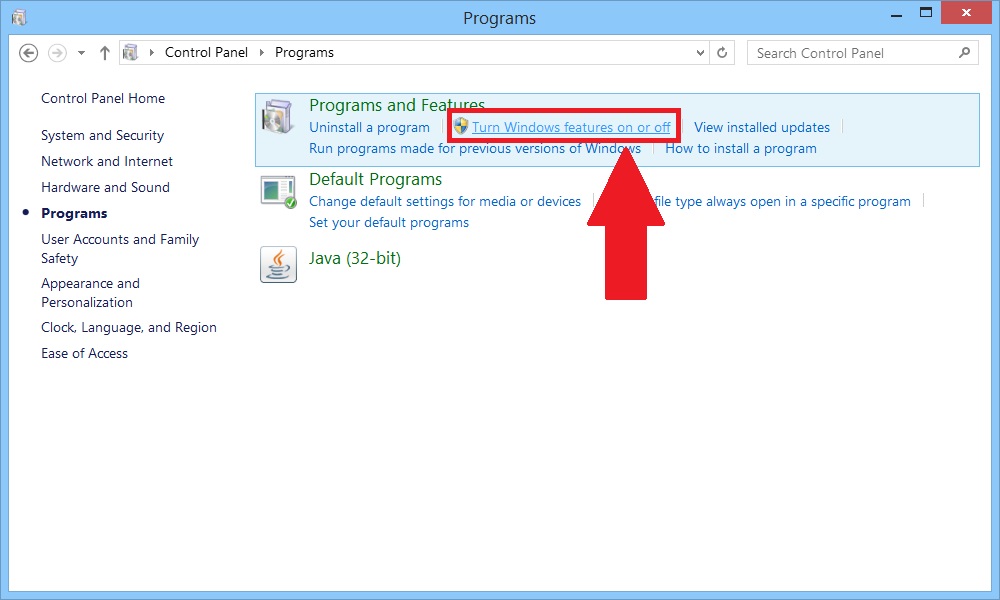
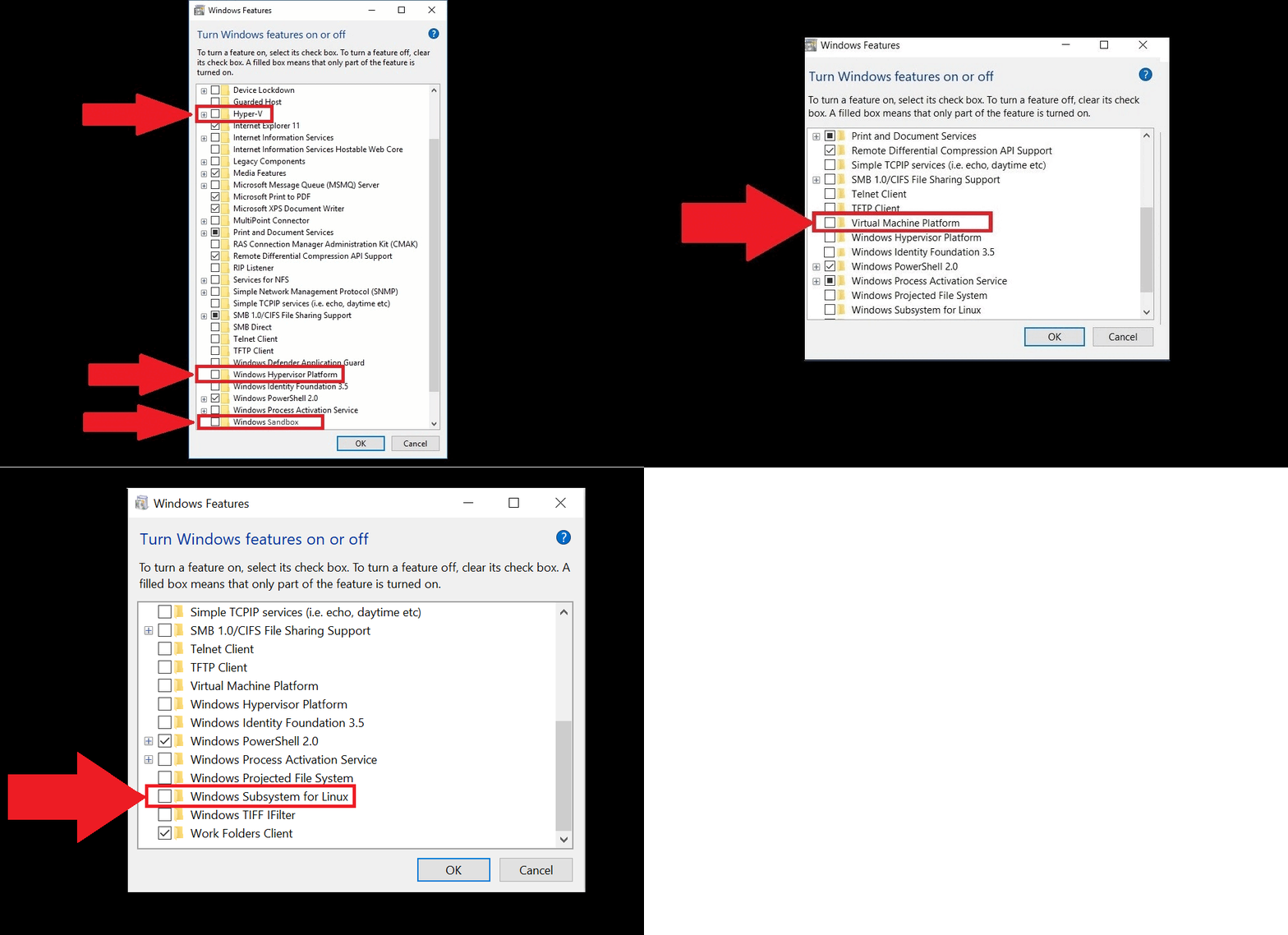
1. Go to Control Panel → Programs → Programs and Features → click on
Turn Windows features on or off.
2. Now uncheck the following boxes:
- Hyper V
- Windows Hypervisor Platform
- Windows Sandbox
- Virtual Machine Platform
- Windows Subsystem for Linux
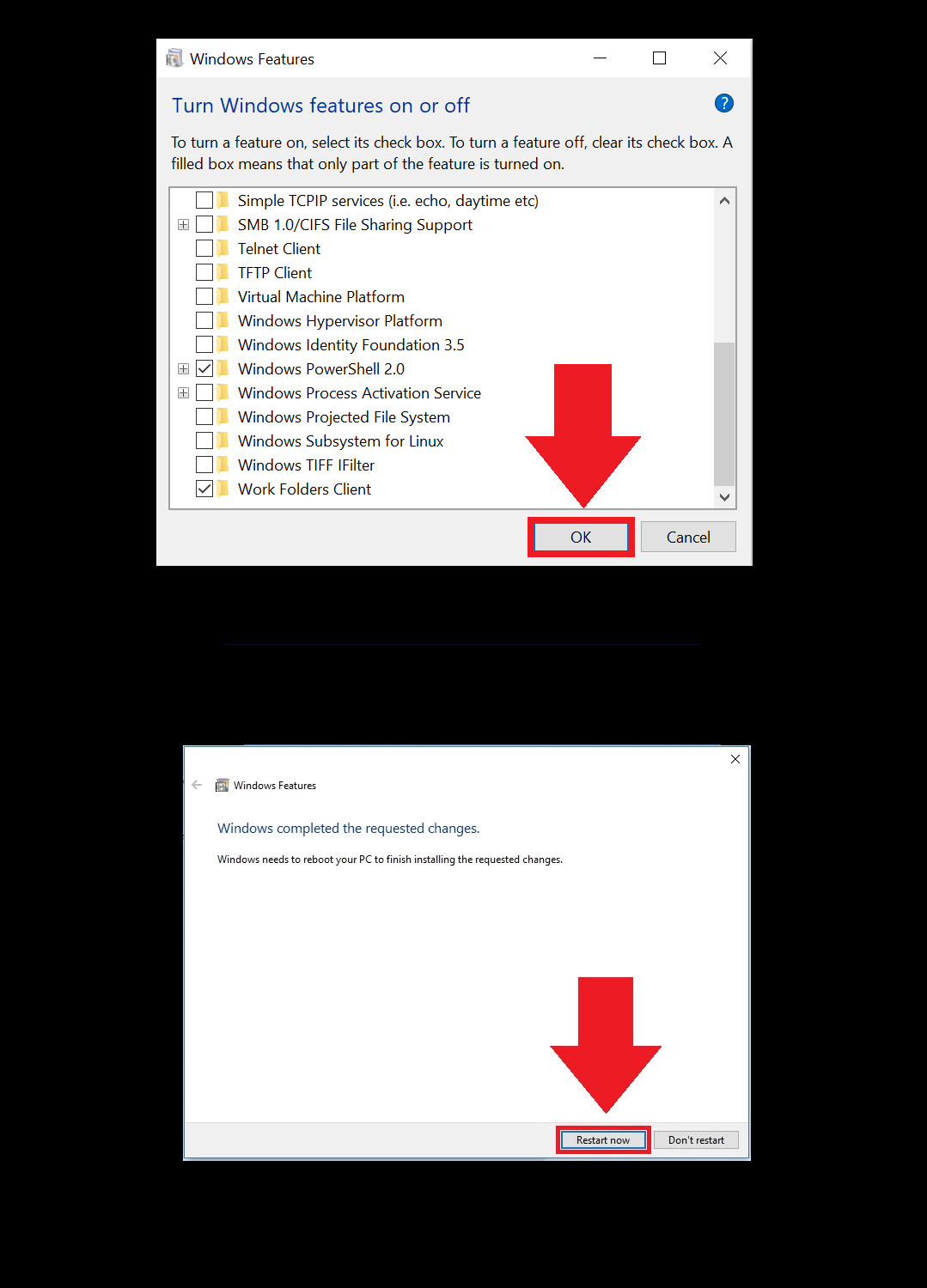
3. After that, click OK and restart your computer.
Alternative disabling method
This option may help if the other methods did not work.
Let's go through it step by step:
1. Open Registry Editor (Regedit) and go to:
HKEY_LOCAL_MACHINE\SYSTEM\CurrentControlSet\Control\DeviceGuard\Scenarios\HypervisorEnforcedCodeIntegrity
Change the Enabled parameter value to 0.
2. Now go to the next section:
HKEY_LOCAL_MACHINE\SYSTEM\CurrentControlSet\Control\DeviceGuard\Scenarios\WindowsHello
Change the Enabled value to 0 again.
3. Restart your computer.
After that, Windows may report a problem with PIN sign-in. Just create a new PIN.
Additionally
If the method above did not help, you can try the official Microsoft tool: Device Guard and Credential Guard Hardware Readiness Tool
Usually, the PowerShell script is run with the -Disable parameter to turn off Device Guard and Credential Guard. After that, a restart is required, and you may need to confirm the changes during boot, for example by pressing F3.
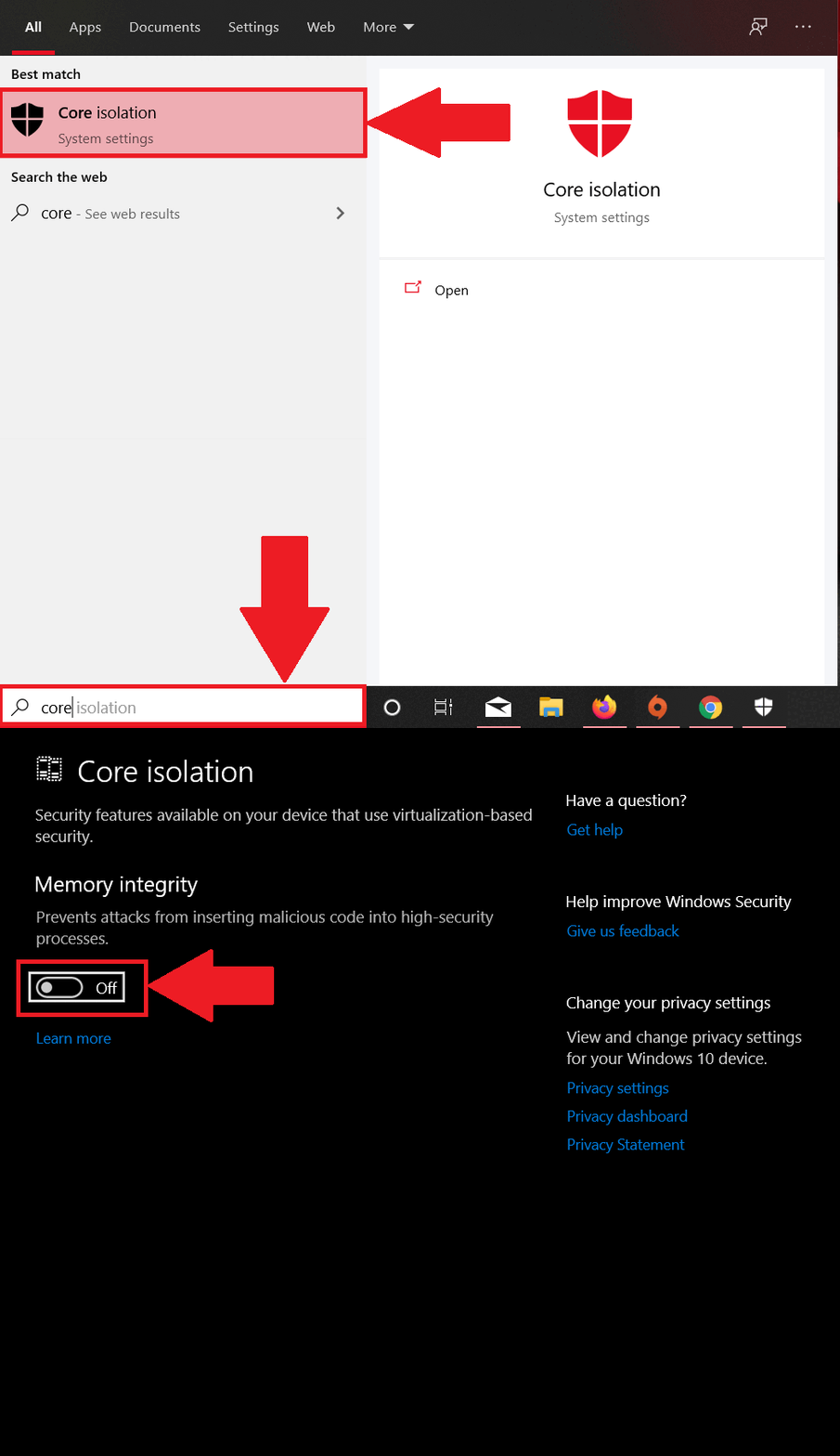
Turning off Memory Integrity
For everything to work smoothly without Hyper-V, let’s also turn off Memory Integrity.
- In the Windows search, type Core Isolation and hit Enter.
- In Core Isolation settings, disable Memory Integrity.